
How to factory reset iPhone without password can feel confusing when your phone is locked and you don’t know where to start. Maybe you forgot the passcode, your iPhone is disabled, or you bought a used device and can’t access it at all. In moments like this, it’s normal to feel stressed and worried about losing your data or damaging the phone.
The good news is that you still have safe and reliable ways to fix the problem. In this guide, you’ll learn simple methods to reset your iPhone step by step, including using trusted tools like Tenorshare 4uKey and official Apple options explained in this helpful unlocking article.
Let’s get started.
Comparison of 4 Ways to Reset iPhone
| Method | Requires Password? | Computer Needed? | Ease of Use | Best For |
| Tenorshare 4uKey | No | Yes | Very easy to use | Locked iPhones with unknown passcode or Apple ID |
| iTunes / Recovery Mode | Sometimes | Yes | Moderate difficulty | Users with access to a computer |
| iCloud (Find My) | Yes | No (browser needed) | Easy to use | Remote reset when logged in |
| Erase iPhone (iOS 15+) | Apple ID only | No | Very easy to use | Newer iPhones running iOS 15 or later |
Method 1: Factory Reset iPhone Without Password Using 4uKey
This method is best when you’re completely locked out of your iPhone and don’t remember the screen passcode at all. It’s especially useful if your device is disabled after too many failed attempts, or if iTunes and iCloud are not available or keep asking for credentials you don’t have. If you want a straightforward way to factory reset iPhone without password, this option is designed exactly for that situation.
Why It’s Better
Tenorshare 4uKey stands out because it removes the lock screen without needing your passcode or iTunes. You don’t need technical skills, and the software guides you through each step clearly. It supports all types of locks, including 4-digit and 6-digit passcodes, Face ID, and Touch ID. Compared to manual methods, it saves time, reduces errors, and works with most iPhone models and iOS versions, making it a reliable solution when other options fail.
Here’s how to restore an iPhone to factory settings:
Step 1: Download and install Tenorshare 4uKey on your computer. Open the program and select Remove Apple ID to begin.
Step 2: Connect your iPhone to the computer with a USB cable. When the device is detected, click Start Remove.
Step 3: If Find My iPhone is already turned off, 4uKey will start removing the Apple ID and reset the iPhone right away.
Step 4: If Find My iPhone is turned on, follow the on-screen instructions to set a screen lock passcode and turn on Two-Factor Authentication.
Step 5: After that, download the required firmware package. Once the download is complete, the Apple ID removal and factory reset will start automatically.
Step 6: When the process finishes, your iPhone will restart. Use the screen lock passcode to activate the device and complete the setup.
Method 2: How to Reset iPhone Without Passcode Using iTunes
This method works well if you have access to a computer and are comfortable using iTunes (on Windows or older macOS) or Finder (on newer macOS versions). It’s a good option when you want to restore an iPhone to factory settings using Apple’s official tools and don’t mind entering Recovery Mode manually.
Here’s how to reset iPhone without passcode:
- Connect your iPhone to a computer using a USB cable and open iTunes or Finder on your computer.
- Force your iPhone into Recovery Mode using the correct button combination for your model.
- When a prompt appears on the computer, choose Restore instead of Update.
- iTunes or Finder will download iOS and erase your device automatically.
- After the process finishes, your iPhone will restart and show the setup screen.
This method allows you to reset iPhone without passcode, but it follows Apple’s standard restore process.
Limitations
- You may still need the original Apple ID and password after the reset due to Activation Lock.
- The process can fail if the connection is unstable.
- Recovery Mode steps can be confusing for first-time users.
- It takes longer compared to dedicated unlocking tools.
Method 3: Factory Reset iPhone Using iCloud
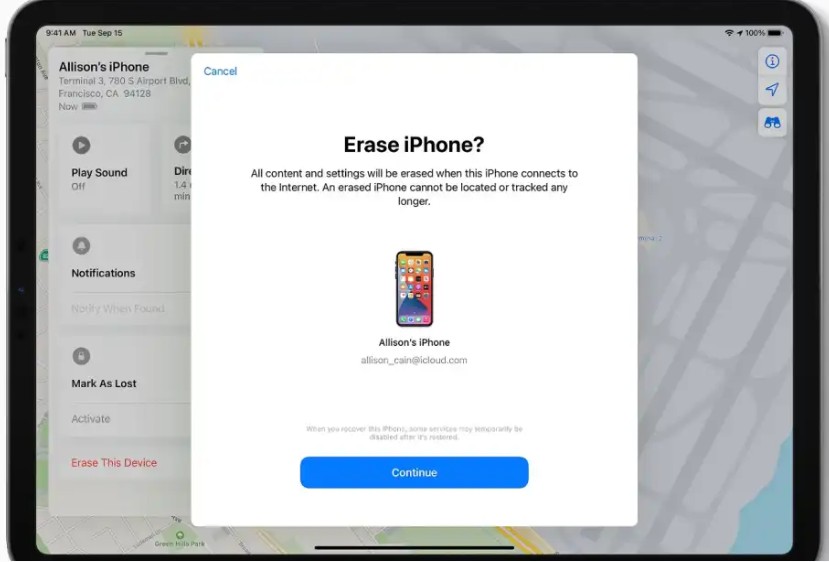
Use this method if Find My iPhone is enabled and you know the Apple ID linked to the device. It’s ideal when your iPhone is lost, locked, or not physically accessible, and you want to erase it remotely.
Steps to reset iPhone without password:
- Open a browser and go to iCloud.com, then sign in with your Apple ID.
- Click Find Devices and select your iPhone from the list.
- Choose Erase iPhone and confirm your decision.
- The reset will begin once the device connects to the internet.
This allows you to factory reset iPhone without password directly from the cloud.
Important Notes
- Your iPhone must be connected to the internet for the erase command to work.
- Activation Lock remains active unless the Apple ID is removed.
- This method won’t work if you don’t remember your Apple ID credentials.
Method 4: Reset iPhone Without Password via Erase iPhone (iOS 15+)
If you have an iPhone running iOS 15 or later, you can reset it directly from the lock screen using the Erase iPhone feature. This is a simple way to factory reset your device without a computer or third-party software.
Prerequisites
- Your iPhone must be running iOS 15.2 or later
- The device needs an active internet connection
- You must remember the Apple ID password linked to the iPhone
Steps to factory reset iPhone without passcode:
- Enter the wrong passcode multiple times until Security Lockout appears.
- Tap Erase iPhone at the bottom of the screen.
- Confirm the action and enter your Apple ID password.
- The iPhone will erase itself and restart.
This built-in option makes it easier to reset iPhone without password on newer devices, without using a computer.
FAQs about How to Factory Reset iPhone Without Password
Will calls and mobile data work normally after unlocking an iPhone?
Yes. Once your iPhone is successfully reset and set up again, calls, messages, and mobile data will work normally. Make sure you use an active SIM card with proper network service.
How to unlock owner lock on iPhone 11 / 11 Pro / 12 / 15 / 16?
To unlock these iPhones, you can perform a factory reset using tools like Tenorshare 4uKey, iTunes, or iCloud. Keep in mind that Activation Lock may still ask for the Apple ID used on the device.
How to remove previous owner Apple ID without password?
If the previous owner’s Apple ID is unknown, you can use a tool like Tenorshare 4uKey to remove it safely. After removal, you can set up the iPhone with your own Apple ID and use it without restrictions.
Conclusion
Knowing how to factory reset iPhone without password is very useful when you forget your passcode, buy a second-hand device, or need to erase a locked iPhone. As we’ve seen, there are several ways to reset your iPhone, including using iTunes, iCloud, the built-in Erase iPhone feature, or a trusted third-party tool. Among these options, Tenorshare 4uKey stands out for being fast, reliable, and easy to use, even for beginners. It can remove Apple ID or screen passcodes safely and help you set up your iPhone as new without any hassle.
Write and Win: Participate in Creative writing Contest & International Essay Contest and win fabulous prizes.
About the Author